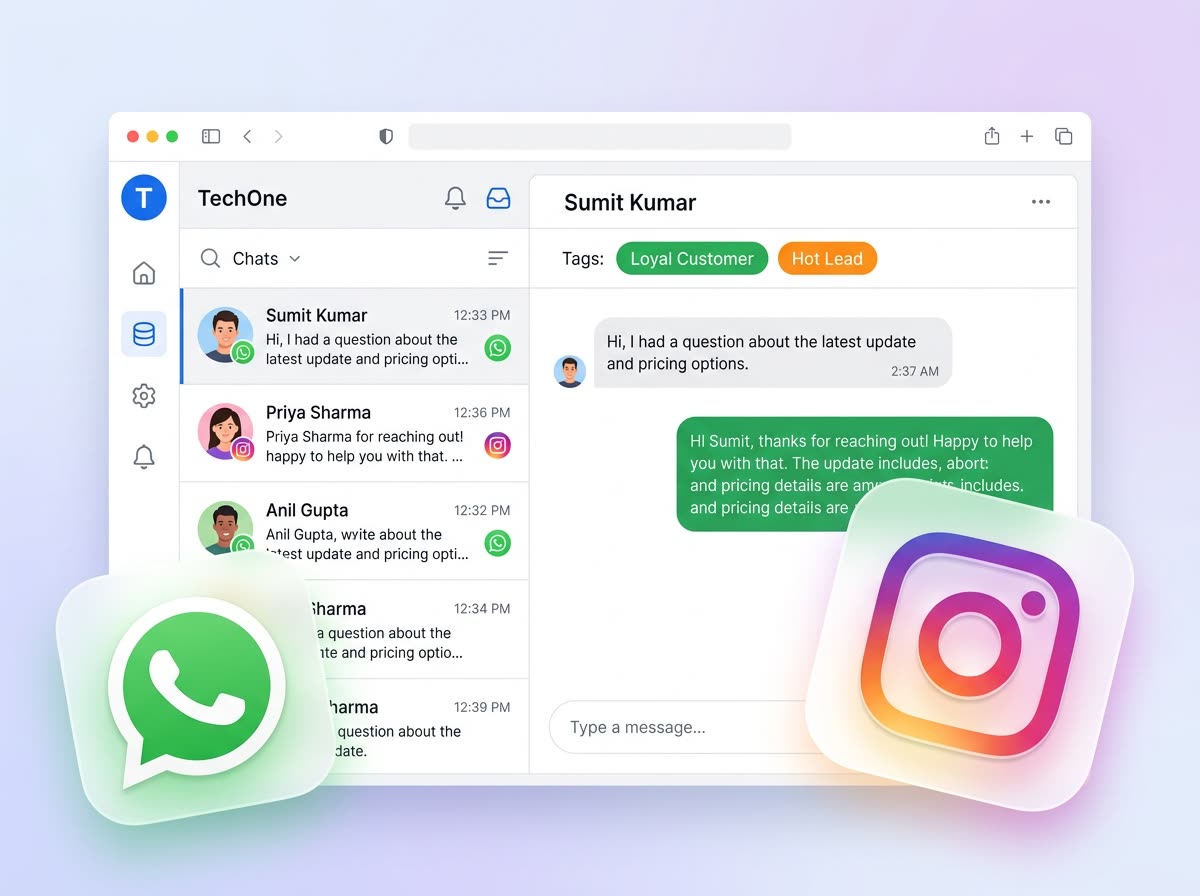
A WhatsApp template is a Meta-approved message format your business uses to start chats, follow up after 24 hours, run broadcasts, and keep quality ratings healthy. This guide explains what templates are, how the parts fit together, and how to create ones that get approved—and convert.
What is a WhatsApp template?
On the WhatsApp Business Platform (Cloud API), you cannot freely message any number at any time. After a customer messages you, you get a 24-hour customer care window for free-form replies. Outside that window—or when you want to start the conversation—you must send a message template that Meta has reviewed and approved.
Think of a template as a reusable script with locked structure:
- Fixed copy Meta has already vetted (so spam and misleading claims get blocked early)
- Variables like
{{1}},{{2}}for name, date, order ID, or offer details - Optional media (image, video, document) and buttons (quick reply, URL, call)
Once approved, the same template powers inbox follow-ups, campaigns, workflows, and reminders inside TechOne CRM—without rewriting policy-safe copy every time.
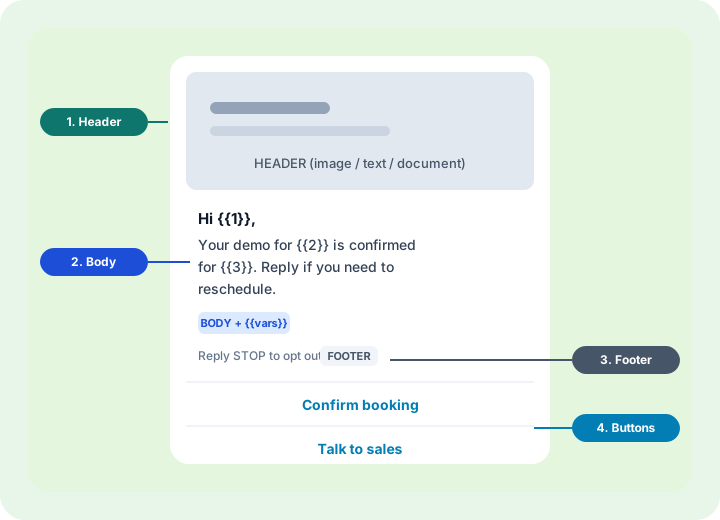
Template categories (pick the right one)
Meta prices and reviews templates by category. Choosing the wrong category is a common rejection reason.
| Category | Use when | Examples |
|---|---|---|
| Utility | Account, order, booking, or service updates the customer already expects | Order shipped, appointment reminder, payment receipt, password reset notice |
| Marketing | Promotions, offers, re-engagement, product launches | Festival sale, abandoned cart nudge, “we miss you” offer, new collection alert |
| Authentication | One-time passwords and login verification | OTP for login, 2FA codes (special format rules apply) |
For most sales teams in India: confirmations and reminders → Utility; offers and broadcasts → Marketing. Do not hide a promo inside a utility template—Meta catches that pattern.
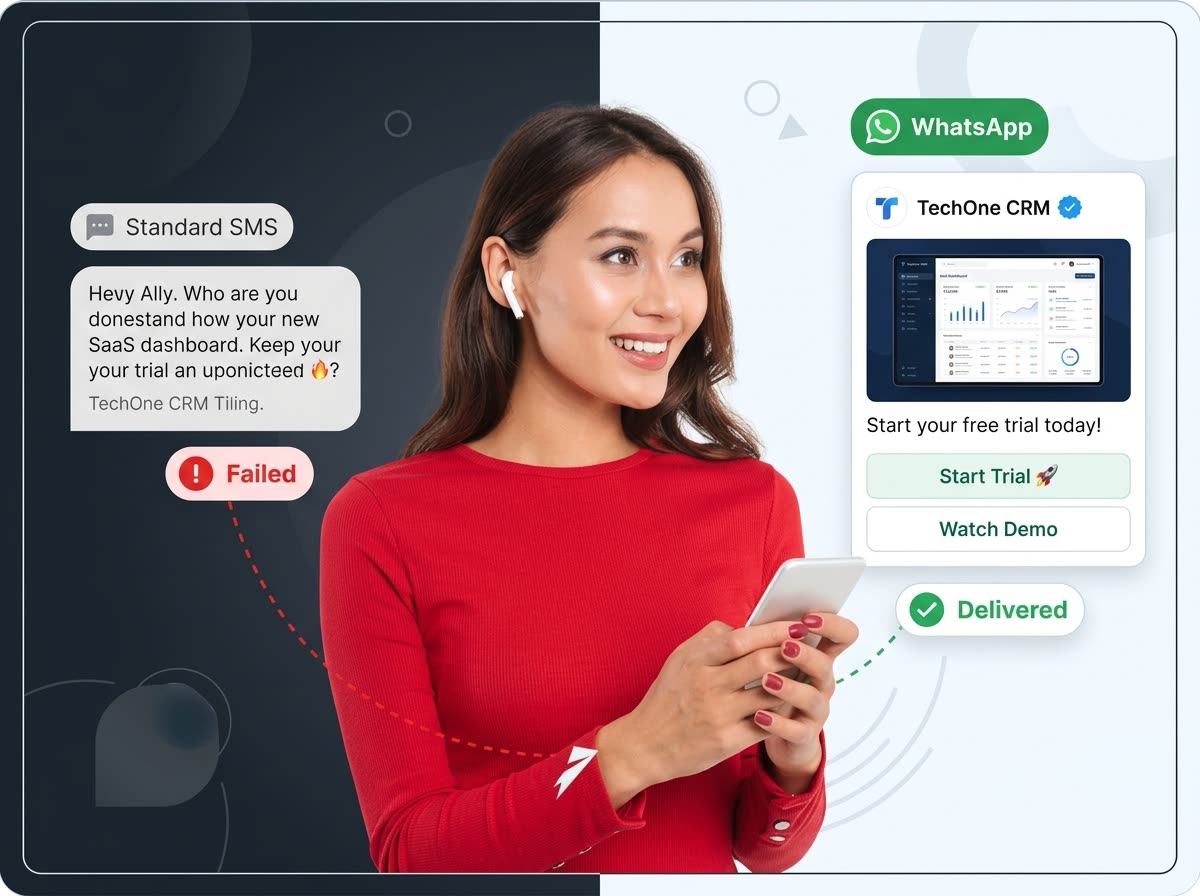
Parts of a strong template
1. Name & language
Use lowercase snake_case names Meta will accept (letters, numbers, underscores)—for example demo_reminder_en or order_shipped_hi. Create separate templates per language (en, en_IN, hi) instead of mixing languages in one body.
2. Header (optional but powerful)
- Text header for short titles (“Booking confirmed”)
- Image / video / document for catalogs, invoices, brochures
When you submit media headers, Meta needs a sample file. In TechOne CRM the template wizard uploads header samples so review can complete without bouncing between WhatsApp Manager tabs.
3. Body (required)
Write clear, specific copy. Prefer:
Hi {{1}}, your site visit for {{2}} is booked on {{3}} at {{4}}. Reply if you need to reschedule.
Over:
Hi! Amazing offers inside 🔥 Click now!!!
Variables must be sequential ({{1}}, {{2}}…) and you must provide sample values for Meta’s reviewer (e.g. name = “Priya”, date = “12 Aug”).
4. Footer (optional)
Short legal or brand line—“TechOne Homes” or “Reply STOP to opt out.” Keep it plain; do not stuff URLs here.
5. Buttons (optional, highly recommended)
- Quick reply — “Confirm”, “Reschedule”, “Not interested”
- URL — open booking page, catalogue, invoice (can include a dynamic path suffix)
- Call — dial your sales number
Buttons turn a one-way blast into a conversation your inbox can close.

Step-by-step: create a template in TechOne CRM
- Connect WhatsApp via Meta (official Cloud API). Templates only work on a verified Business API number.
- Open WhatsApp → Templates → Create.
- Choose category (Utility / Marketing / Authentication) and language.
- Set a clear template name, write the body, add variables, then optional header, footer, and buttons.
- Fill sample values so Meta reviewers see real-looking content.
- Submit to Meta. Status moves Pending → Approved or Rejected (often within minutes to 48 hours).
- Once Approved, use it in chats (outside 24h), campaigns, follow-up sequences, and workflows.
- Use Sync from Meta if you also manage templates in WhatsApp Manager—keeps TechOne CRM as the source of truth for sends.
Approval tips that actually work
- Be specific — name the product, booking, or order; avoid vague “special offer inside”
- Match the category — marketing copy belongs in Marketing templates
- Provide samples for every variable and every media header
- Keep formatting clean — no broken placeholders, no excessive emojis or ALL CAPS
- Respect opt-in — only message people who agreed to WhatsApp updates
- Avoid prohibited verticals for broad marketing (gambling, certain adult content, etc.)

Where templates drive results in TechOne CRM
- Inbox — reopen cold chats after the 24-hour window
- Campaigns & broadcasts — send only to opted-in lists with approved marketing templates
- Follow-up sequences — day-2 / day-7 reminders that still comply when the session expired
- Workflows — stage or status changes can trigger the right Meta template automatically
Click-to-WhatsApp ads are different: ad clicks open a customer-initiated chat (session window). Templates still matter for later nurture if the lead goes quiet—keep ad traffic and broadcast lists separate so reporting stays clean.
Quality rating & delivery
Meta watches how people react. Blocks, reports, and “Stop” replies lower your quality rating and can throttle template sends. Protect the rating by:
- Testing on a small internal or VIP list first
- Segmenting (hot leads vs cold newsletter names)
- Responding quickly when someone replies to a template
- Honoring opt-outs immediately

Quick checklist before you hit Submit
- Category matches the real purpose (Utility vs Marketing)
- Name is snake_case; language is correct
- Body is specific; variables are sequential with samples
- Header media sample uploaded (if using media)
- Buttons have clear labels (Confirm / View order / Call us)
- Audience is opted-in; you’ll monitor quality after first sends
Create your first approved template
TechOne CRM includes a guided WhatsApp template wizard, live preview, Meta submit/sync, and the same templates for inbox, campaigns, and automation—with human onboarding when a template gets stuck in review.